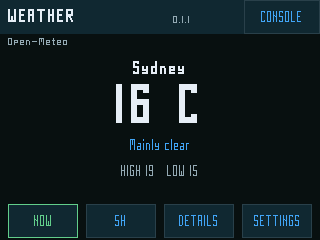
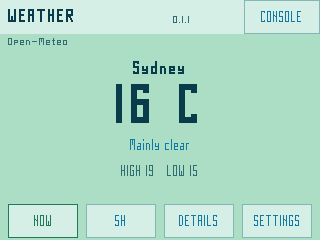
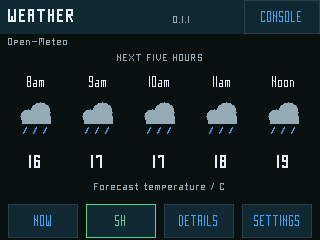
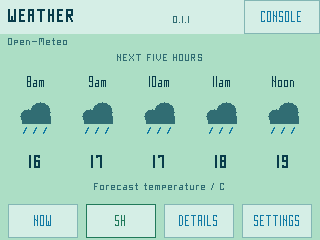
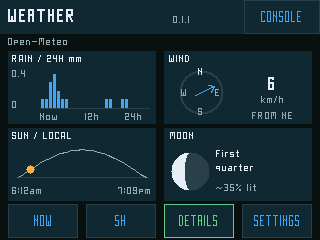
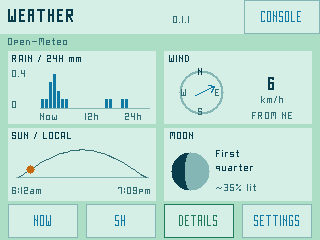
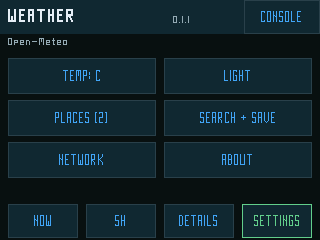
One clear view of your place, temperature, conditions and today’s high and low. Tap 5H for five time/icon/temperature columns, or DETAILS for a fuller picture.
Install the SD package and wait for saved Wi-Fi and time sync.
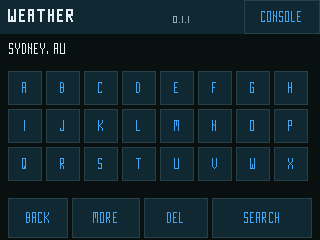
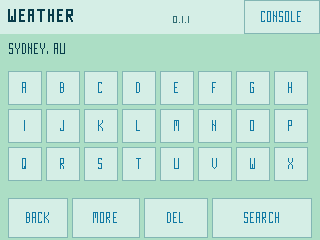
Choose Settings → Search + save. Use the touch keyboard and select the correct region/country.
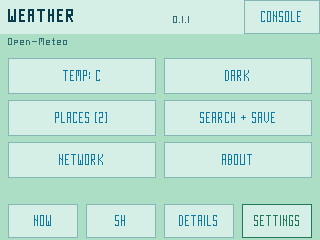
Save up to six places, choose C/F, and switch dark or mint-blue themes. Console stays within reach.
Hourly values are forecast temperatures at the labelled hour, rather than invented within-hour highs.
Rain in mm, wind in km/h, schematic daylight arc and moon-phase diagram.Large touch search keys. Choose the correct country and region from results.Keep several places; change units and theme independently.
Basic device check passed: repaired startup, location search and NOW/5H workflow. Multiple-place persistence, individual chart accuracy, physical theme/unit persistence and Console/Run last remain separately unverified. The unpublished 0.1.0 stack-overflow build is excluded. Forecast data: Open-Meteo, CC BY 4.0; location search: GeoNames. Screenshots use public fixtures and are not live forecasts.
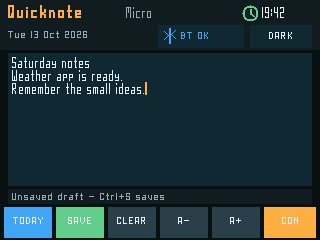
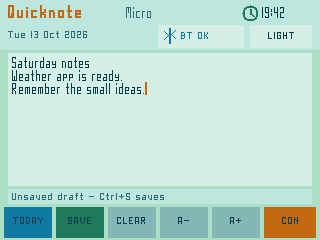
A small notebook with your B1 keyboard. Write a few lines, press Ctrl+S or tap Save, and keep timestamped entries in one Markdown file per day on the SD card.
Set Console’s clock, install Quicknote and wake or pair your B1.
Write, edit and resize with Ctrl+Equals / Ctrl+Minus or the touch font controls. Hidden draft checkpoints preserve unfinished text.
Use Today and previous/next day history. Later, download saved daily notes through File Server.
No cloud account or Wi-Fi is needed for editing. A valid clock is required to save dated entries. Notes are plaintext on your card.
Console PixelFonts in all three sizes. Dark and mint-blue themes.
User acceptance complete: no issues reported on the tested CYD. Native sanitizer tests separately cover editing, draft recovery, durable Markdown append, bounded history and font/theme layouts. The broad physical report does not establish a full-card/removal failure matrix. The accepted binary is unchanged.
Offline RGB control · user-accepted on the tested CYD
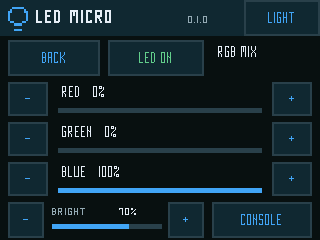
The board already has an RGB LED. Give it a useful control panel: choose red, green, blue, yellow or white, mix your own colour and set brightness without a network or keyboard.
Copy the three release files into SD /firmware, then choose Load from SD Card → LEDMicro-0.1.0 → Install + run.
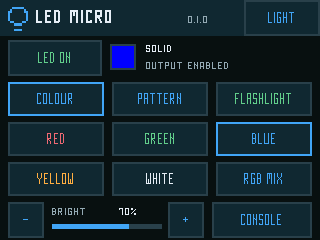
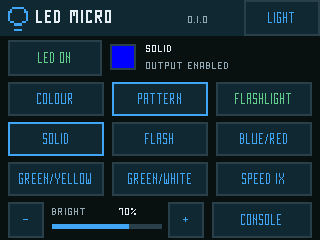
Tap LED OFF to enable output. Choose COLOUR or PATTERN; the bottom −/+ controls adjust brightness.
FLASHLIGHT enables solid white at full brightness. CONSOLE turns the LED off before returning home.
Solid or flashing light; blue/red, green/yellow or green/white alternation; three speeds. Power always starts off. Settings stay in the app’s own namespace.
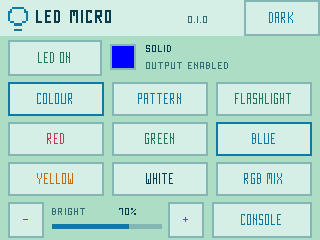
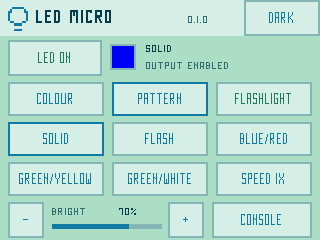
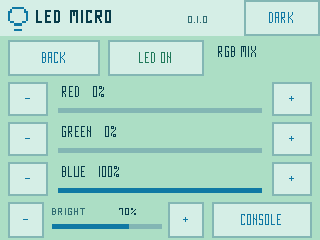
Actual firmware-renderer fixture. The preview swatch follows the pattern; the real RGB LED is on the board.
Five modes. Three speeds. Brightness remains adjustable.Independent channel mixing, plus global brightness.
Device check passed: SD installation, primary colours, brightness, on/off, flashing/alternation/speed, white flashlight, Console return and Run last. RGB-mixer, theme and saved-preference checks have native coverage but were not separately physically reported. No measured light output, PWM timing or current claim. Screenshots are renderer fixtures, not photographs.
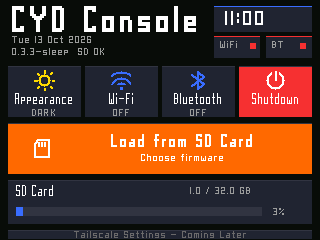
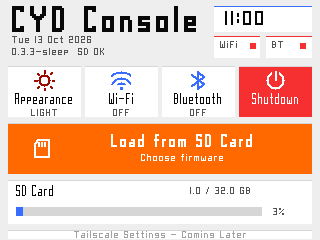
Firmware renderer capture. The SD library presents versioned packages; installation verifies the image and flash readback.
Wi-Fi and Bluetooth tiles are currently placeholders. Shutdown enters deep sleep; it does not cut USB power. Hold touch while powering on for at least five seconds to return to Console.
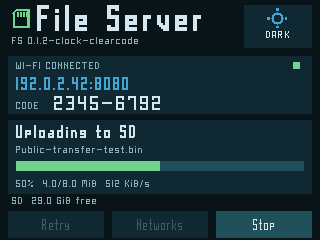
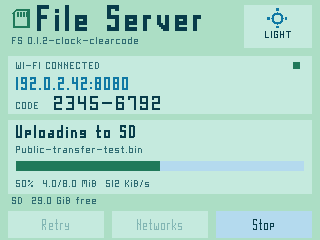
Firmware renderer capture with a reserved example address and public test file. No real access code or network is shown.
SD FILES / THROUGH YOUR BROWSER
More moving files. Less moving cards.
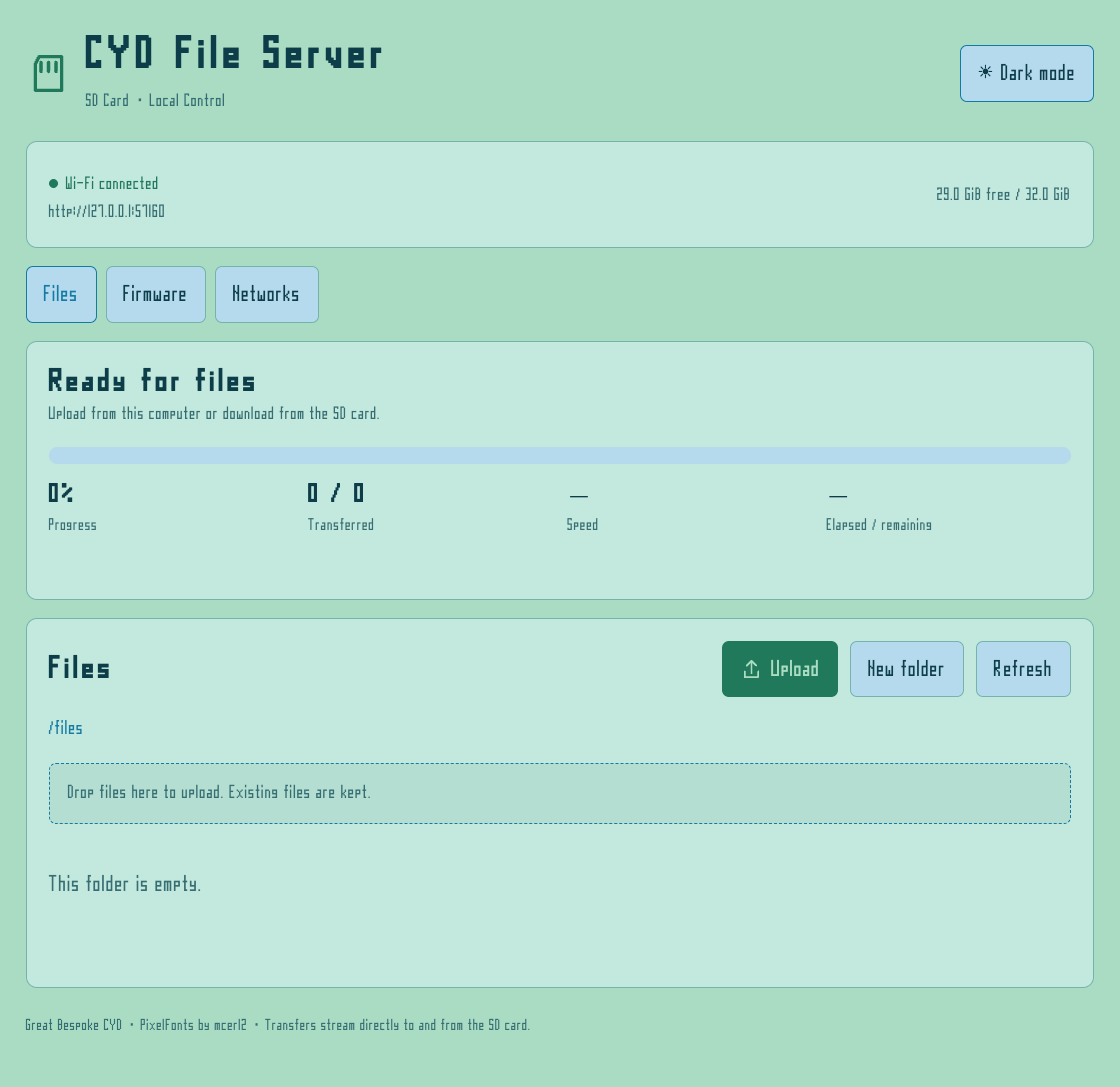
File Server 0.1.2-clock
The CYD shows its address, port and a readable numeric access code. Open that address on the same LAN to browse the shared SD area.
Join a saved Wi-Fi network, or use Networks → Setup hotspot to configure another 2.4 GHz LAN.
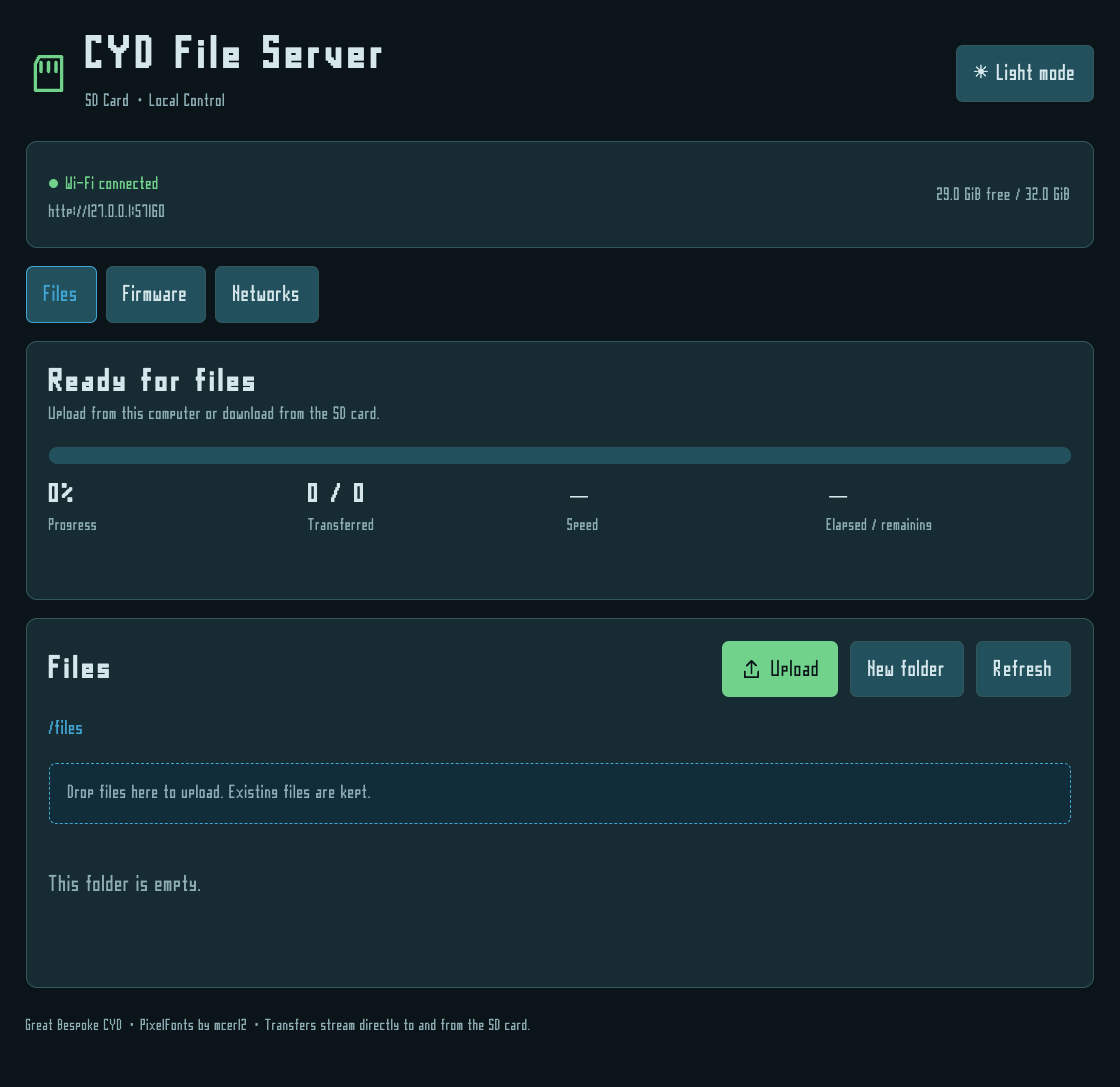
Enter the on-screen code in your browser. Choose files to upload, download a file, or create a folder.
Watch progress on the CYD and in the browser. Cancel a transfer when needed; return with Console.
Streamed transfers and bounded buffers suit the original ESP32’s small RAM. Dark and mint/blue light themes work independently on both screens.
Actual browser UI and PixelFonts, captured against a local mock API. Device networking and SD throughput are separate hardware checks.
Trusted LAN use: this is HTTP, not HTTPS. The access code does not encrypt traffic. No enterprise Wi-Fi or captive-portal sign-in. A complete phone walkthrough joining a fresh LAN is still pending.
BLE KEYBOARD / VERIFIED SSH
A terminal you can read.
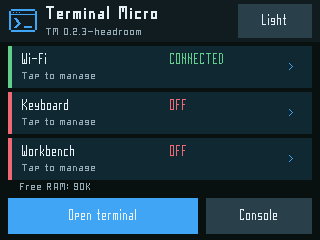
Terminal Micro 0.2.3-headroom
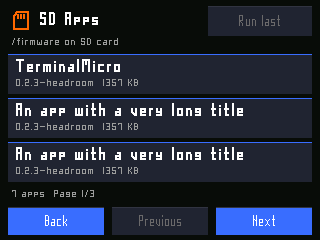
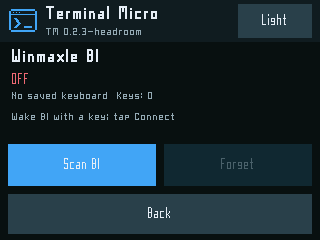
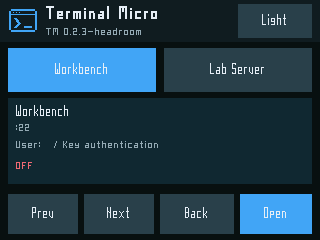
Large connection cards lead to a clean SSH shell. The same PixelFonts as Console keep the interface consistent; the terminal offers three sizes and real PTY resizing.
Add your private Wi-Fi, host and dedicated-key profiles to SD. Verify the server’s host-key fingerprint.
Wake a saved keyboard, or pair through Keyboard → Scan B1 → Pair. Winmaxle B1 is the tested model.
Select a host and Open terminal. Tap its header for font controls, Live output, disconnect and Console return.
Ctrl+Equals / Ctrl+Minus zoom. Swipe or Shift+PageUp/Down for bounded main-screen history. Your remote tools run on the host; the CYD handles input and display.
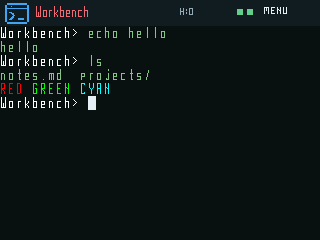
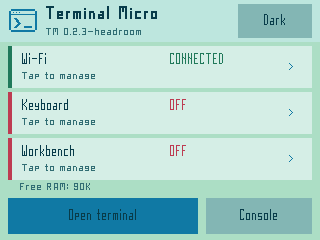
Actual terminal renderer fed public ANSI fixtures. Default grid: 40 columns × 15 rows. This is not a live private shell.
Large cards for connection setup.Pair or reconnect the saved B1.Switch hosts after disconnecting.
This is a bounded embedded ANSI terminal, not a complete xterm implementation. Host-key pinning is mandatory. Keep the SD card private: it contains your dedicated SSH key.
USAGE 0.2.0 / EARLY ACCESS
A home for your allowances.
Previously Ollama Usage · now multi-provider
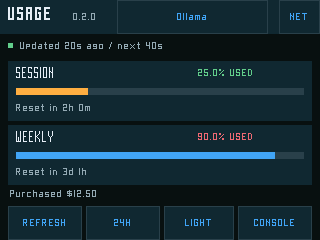
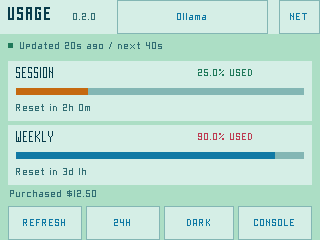
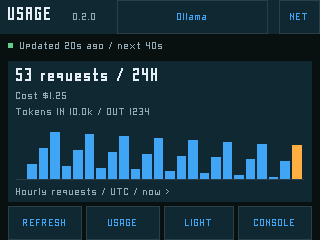
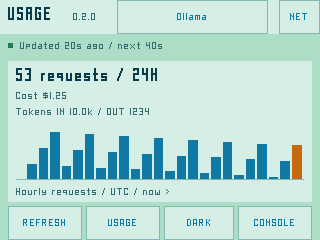
Ollama: session/weekly allowances or included credits, reset countdowns and hourly 24H requests.
Codex: actual five-hour and weekly windows through your existing signed-in CLI. OAuth stays on the Mac; no OpenAI API key is required.
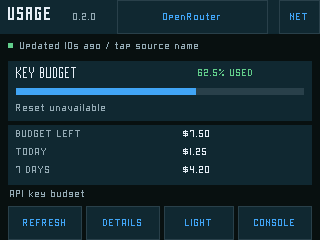
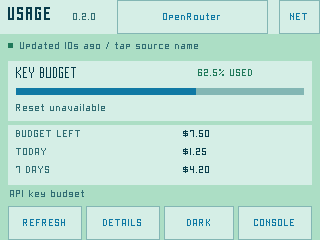
OpenRouter: optional API-key spending, remaining budget and daily/weekly totals.
Your service: add an authenticated HTTPS JSON feed. Up to four independent sources.
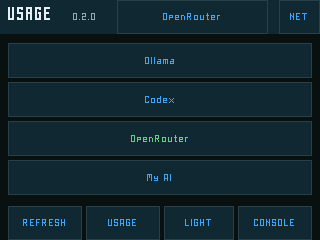
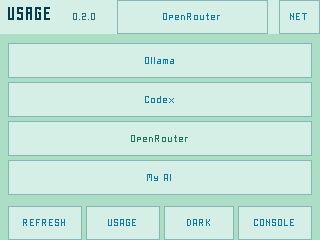
Tap the source name to switch. Readable PixelFonts, larger touch controls, light/dark themes and Console return keep the interface familiar.
One source per page. Each retains its own metrics, freshness and retry schedule.
Ollama allowances and reset timers.OpenRouter key budget; optional key, fixture-tested.Hourly history where the source reports it.
01 / PREPARE
Reuse your login
Run the provided helper on the signed-in Codex host. It prepares a private read-only HTTPS bridge and device settings.
02 / PROVISION
Keep secrets separate
Use an SD reader for /private/usage.json and its bridge CA. Real keys and private certificates are never bundled.
03 / INSTALL
Choose your source
Console → Load from SD Card → Usage-0.2.0 → Install + run. Tap the source name to switch or view how to add one.
Early-access evidence: builds, sanitizer/HTTPS tests and live host Ollama/Codex parser checks pass. OpenRouter/custom screens use fixtures. SD installation, Codex meters and switching back to Ollama are user-confirmed on the tested CYD. Extended memory, reconnect, sleep and Console checks remain pending. The Codex host must stay awake; Ollama and OpenRouter use direct verified HTTPS independently.
These builds target the original ESP32, dual-UART-USB ESP32-2432S028R with 4 MB flash and resistive touch. CYD clones vary. Exact display silicon and PSRAM identity remain unverified; no PSRAM is assumed.
Firmware
Role
Version / status
Console
Resident factory launcher
0.3.3-sleep · 336,000 bytes
File Server
SD-installed app + clock helper
0.1.2-clock · 921,888 bytes
Terminal Micro
SD-installed SSH app
0.2.3-headroom · 1,376,832 bytes
LED Micro
SD-installed offline RGB LED control
0.1.0 · user-accepted · 306,240 bytes
Usage
SD-installed multi-provider dashboard
0.2.0 · early access · 1,050,400 bytes
Weather Micro NEW
Open-Meteo forecast and saved places
0.1.1-stack · 1,100,288 bytes
Quicknote Micro NEW
Offline daily Markdown notes
0.1.0 · 807,408 bytes
Existing Console users can copy the SD library. A first install needs a backup and the matching bootloader, partition table and Console image. Never flash an app-only image over the resident Console. Both USB connectors are UART bridges; this ESP32 cannot expose its SD as a native USB disk.
The repository includes the shared hardware layer, clock, fonts, tests and a buildable app generator. A portable specification keeps future firmware and contributors consistent.
Start with the contract
Read AGENTS.md for preservation and validation rules, then SPEC.md for architecture and release requirements.
Humans set the goal and judge the real screen. Agents implement, run checks and package. Record observed acceptance, limitations and the next action so another contributor can continue.
Console, File Server, Terminal Micro, LED Micro, Quicknote and Weather preserve accepted hardware builds. Usage is an early-access candidate. Public sources have been reorganised into shared components; a rebuild is a candidate until tested on hardware. Renderer screenshots and browser fixtures demonstrate layout, not physical acceptance.